
Blogger is a free blogging platform owned by Google that allows users to create and publish their own blogs on the web. It was created in 1999 by Pyra Labs and was later acquired by Google in 2003.
Blogger URLs usually end with “.blogspot.com” (e.g. myblog.blogspot.com), which is the default domain provided by Blogger. However, it is possible to Connect Custom Domain to Blogger. This means that instead of using the default “blogspot.com” domain, you can use a domain name of your choice (e.g. myblog.com).
Cloudflare DNS to connect your custom domain to Blogger can provide a range of benefits that can help to improve your website’s performance, security, and flexibility.
Requirements to Connect Custom Domain to Blogger.
- Create a Blogger account.
- Domain: If you haven’t bought domain yet you can just domain from eHostingServer. Or else you can get domain free follow this blog, How to Register .com.np Domain in Nepal for Free?
- Create a Cloudflare account.
Steps to Connect Custom Domain to Blogger
STEP1:Creating an account at Cloudflare and adding a domain to it.
This is the first step to Connect Custom Domain to Blogger using Cloudflare DNS.
STEP 1: The first step is to log in to Cloudflare. If you have already created an account, then login using your Email and Password; if not, first sign up to create an account.

STEP 2: After login, we have to add a website to it, and for that, we have to click on Add Site.

STEP 3: As you can see I have added salonikarna.com.np which is my domain name. You can add you Domain name then click on Add site.

STEP 4: Select Free Plan worth 0$ and confirm plan.

STEP 5: Now, Cloudflare will scan your domain and show which Nameservers need to be updated at your Domain. Every domain name has a different nameserver, so use your nameserver. In my case, it is the
- Nameserver 1: lewis.ns.cloudflare.com
- Nameserver 2: macy.ns.cloudflare.com
Now we have to add this nameserver to Domain Control Panel.
STEP 2:Changing Nameserver of Domain at your Domain registrar.
STEP 1: Login to your Domain Registrar. In my case it is .com.np domain so I can login to
STEP 2: Click on Active Domain, then click on Edit DNS.

STEP 3: Now you can use the nameserver provided by Cloudflare and click on Edit DNS.

Nameserver usually takes 24 hours to propagate. To check if your nameserver is propagated properly you can use online tools like DNS Checker. As you can see my DNS modification is completed.

STEP 3: Adding Custom Domain on Blogger
STEP 1: Login to Blogger. Go to the setting which is on the left side.

STEP 2: Go to the publishing where you see Custom Domain. Click on that. Write your domain name and click on Save. Make sure you are adding domain with WWW and without HTTP or HTTPS.

STEP 3: After you add the custom domain, the message popup shows TWO CNAMEs. You have to add these CNAME records to the Cloudflare DNS setting.

STEP 4: Now you have to add these CNAME records to the Cloudflare DNS. For that login to Cloudflare ->Go to the DNS setting.
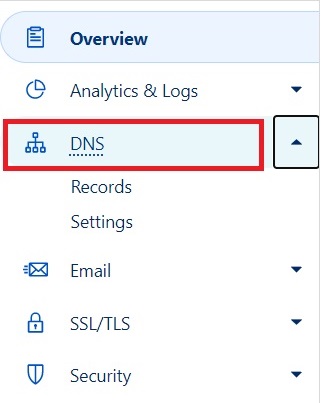
STEP 5:Here I have added 2 CNAME which is generated STEP 3. Make sure you click on proxied(Proxy status) and use TTL lowest which is 2 minutes.

STEP 6: Now you have to add these four A-Records corresponds to four different Google IP addresses.
- 216.239.32.21
- 216.239.34.21
- 216.239.36.21
- 216.239.38.21
In the Type select A record and in Name section use @ and in the content section use the above IP address one by one.

STEP 7: Now go back to the blogger and click on the save button. If you are unable to save it wait for 30 minutes or an hour and then try again.
STEP 8:To enable such redirection, go to Blogger settings. Under “Publishing” you can find the Redirect domain setting, just enable it.

Conclusion
In conclusion, to Connect Custom Domain to Blogger using Cloudflare DNS is a relatively simple process that can greatly improve your website’s branding and professional appearance. By following the steps outlined in this blog, you can successfully link your custom domain to your Blogger site and enjoy the benefits of a fully branded website.
With Cloud flare’s robust DNS management tools, you can also enhance your website’s security, performance, and availability. We hope that this blog has been helpful to you and wish you success in your blogging journey.